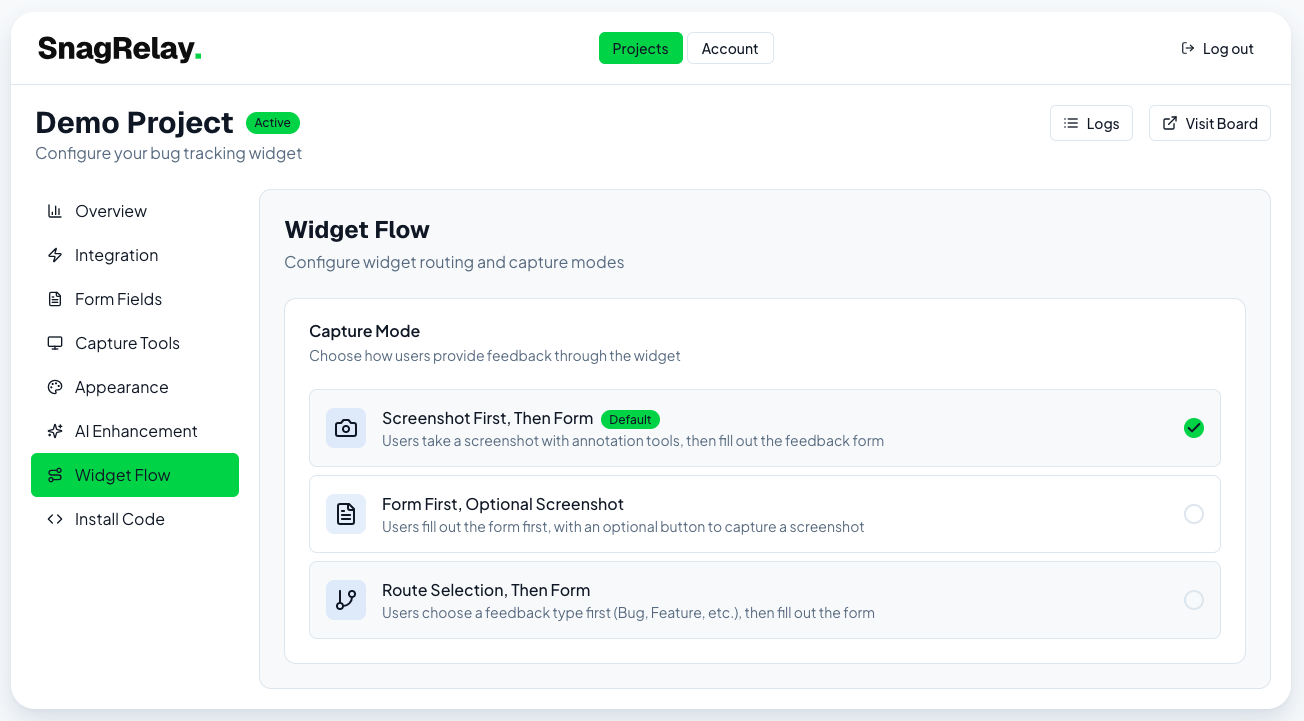
Widget Flow & Routing
Choose how the report flow works, and set up custom routing buttons.
Capture modes
Controls the order of operations when a reporter clicks the widget button:
| Mode | Flow |
|---|---|
| Screenshot First, Then Form (default) | Capture a screenshot immediately, then show the form |
| Form First, Optional Screenshot | Show the form first; screenshot is optional |
| Route Selection, Then Form | Reporter picks a route (see below) before anything else |
Routing
Routing lets you offer multiple report types from the same widget — for example, Bug, Feature Request, and Question — each creating a differently-labeled tracker item.
New projects get three default routes automatically:
| Route | Title prefix |
|---|---|
| Bug | [Snag] |
| Feature Request | [Feature] |
| Question | [Question] |
You can edit these or add your own from the route editor: set a title, description, a title prefix applied to the tracker issue, and optionally a target status.
To use routing, set the capture mode to Route Selection, Then Form and make sure
Enable Routing is on. Each submitted report carries its route_id, and the title
prefix replaces the default [SnagRelay] prefix on the created issue.
Screenshot